Constantly switching between tabs, missing important emails, or struggling to stay focused while working or studying? You’re not alone. After spending years working with digital tools and productivity systems, I’ve tested dozens of browser extensions that genuinely save time, reduce distractions, and simplify daily workflows.
In this guide, I’ll walk you through the best Chrome extensions for productivity, writing, remote work, development, and browsing efficiency — whether you’re a student, professional, developer, or content creator.
Why Chrome Extensions Are So Useful
Chrome extensions act like mini-tools inside your browser that automate tasks, improve focus, and organize your digital workspace. Here’s how they help:
- Save study and research time
- Improve writing accuracy
- Reduce tab clutter
- Block distractions
- Simplify note-taking
- Automate tasks
- Improve online meeting productivity
- Organize projects efficiently
- Reduce mental overload
In short: they make your browser work smarter so you don’t have to work harder.
Best Chrome Extensions by Category
Productivity Extensions
1. StayFocusd

StayFocusd is a powerful productivity-focused Chrome extension designed to eliminate digital distractions and help you stay concentrated on your work or studies. Unlike basic website blockers, it doesn’t just block sites randomly — it allows you to control exactly how much time you can spend on distracting websites each day.
How StayFocusd Works
StayFocusd lets you set a daily time limit for specific websites that usually waste your time (like social media, video platforms, or news sites). Once your allowed time is used up, those sites are blocked for the rest of the day.
For example: If you set a 20-minute daily limit for Instagram and YouTube, you can browse them only for 20 minutes total.
Best for: Students, writers, remote workers
Key Benefit: Forces discipline and improves concentration.
2. Workona Tab Manager
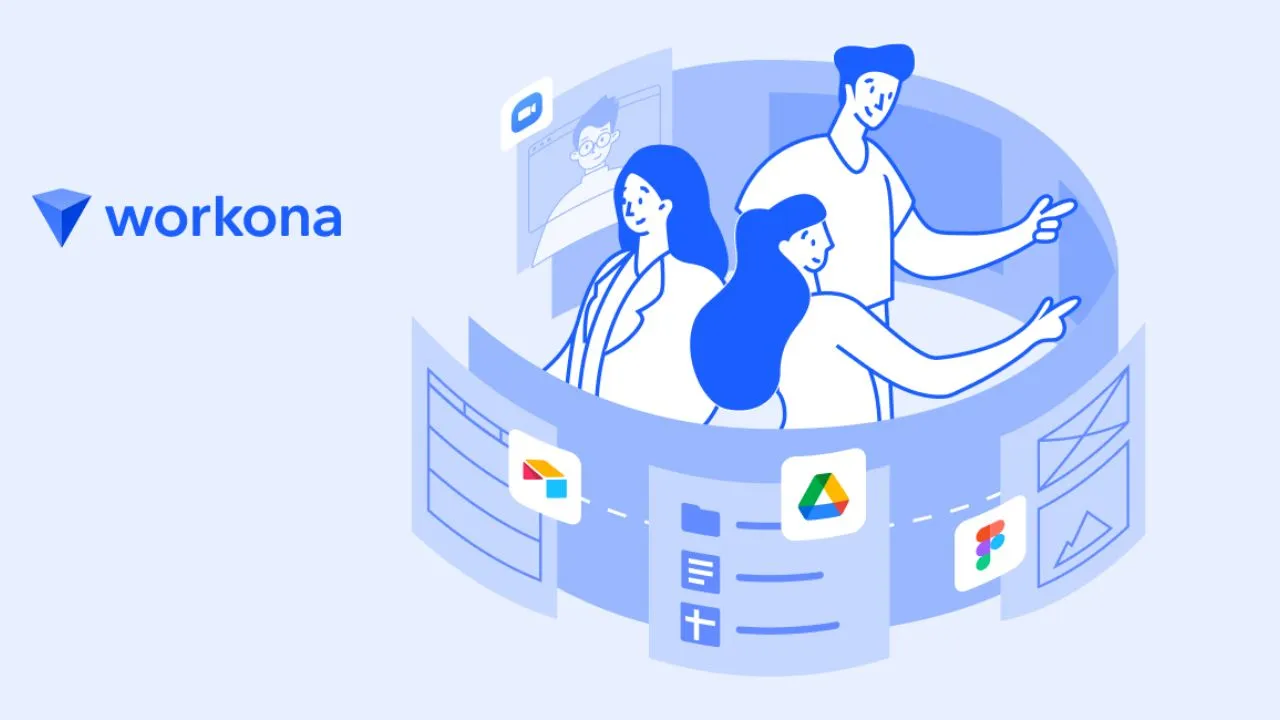
Workona Tab Manager is a powerful browser workspace tool designed for people who work with dozens of tabs daily. Instead of letting tabs pile up and slow down your browser, it organizes them into structured workspaces based on tasks or projects.
For example, you can create separate spaces for:
- Client projects
- Research work
- Content writing
- Development tasks
- Meetings and communication
This structured system keeps your workflow clean, prevents confusion, and helps you instantly switch contexts without losing progress. Professionals who multitask across different projects find this extension especially valuable because it reduces mental clutter and saves time otherwise wasted searching for the right tab.
Another major advantage is performance optimization. Too many open tabs consume RAM and slow down Chrome. Workona automatically suspends inactive tabs, helping your browser run faster and more efficiently.
Best suited for: Remote workers, digital marketers, developers, researchers, project managers, and anyone who works with many tabs simultaneously.
How Workona Works
Workona works by turning your browser into a workspace manager:
- Create Workspaces — You can create separate tab groups for each project or task.
- Save Sessions — Your tabs are automatically saved, so you can close them without losing progress.
- Switch Instantly — Move between projects with one click instead of searching through dozens of tabs.
- Suspend Inactive Tabs — It pauses unused tabs to save memory and improve browser speed.
- Sync Across Devices — Your workspaces stay available if you log in from another device.
Result: You stay organized, focused, and productive without tab overload.
3. Boomerang for Gmail
Boomerang for Gmail is a powerful email productivity extension designed for professionals who handle a large volume of emails daily. It helps you stay organized, ensures you never miss important follow-ups, and allows you to manage your inbox more strategically instead of reactively.
This tool is especially useful for managers, team leaders, freelancers, recruiters, and business owners who rely heavily on email communication. Rather than constantly checking your inbox, Boomerang lets you schedule, pause, and prioritize messages so your workflow stays smooth and distraction-free.
Why professionals prefer Boomerang
- Keeps inbox clean and clutter-free
- Prevents missed replies or deadlines
- Improves response consistency
- Saves time on repetitive email tasks
- Reduces stress from email overload
How Boomerang Works
Boomerang integrates directly into your Gmail interface after installation. Once added, it introduces smart buttons and scheduling options inside your email window.
Key functions explained simply
- Email Scheduling: You can write emails now and send them later at the perfect time. This is helpful for:
- Sending messages during business hours
- Communicating across time zones
- Planning campaigns or reminders in advance
- Snooze Emails: If an email isn’t urgent, you can temporarily remove it from your inbox and make it return at a chosen time. This keeps your inbox focused only on current priorities.
- Follow-Up Reminders: Boomerang tracks emails you send and alerts you if someone hasn’t replied within a set timeframe. This ensures no conversation gets forgotten.
- Inbox Pause Feature: This feature temporarily stops new emails from arriving, allowing you to focus on deep work without interruptions.
Best Use Case: If your day involves constant emailing, meetings, or client communication, Boomerang acts like a personal email assistant that manages timing, reminders, and inbox flow automatically.
Writing & Communication Extensions
4. Grammarly
Grammarly is one of the most advanced writing assistant tools available today and is widely trusted by professionals, students, bloggers, and business teams. It goes far beyond simple spell-checking — it analyzes your writing for grammar, clarity, tone, engagement, and delivery. Whether you’re drafting emails, reports, blog posts, assignments, or social media captions, it works in real time to refine your content and make it more professional.
What makes it especially powerful is its adaptability. It adjusts suggestions based on your writing goals — formal, casual, academic, or persuasive. Over time, it also helps improve your writing skills because you start understanding why corrections are suggested rather than just accepting them blindly.
Key Advantages
- Real-time grammar and spelling correction
- Tone detection for professional communication
- Clarity and conciseness suggestions
- Vocabulary enhancement recommendations
- Works across Gmail, Docs, browsers, and messaging platforms
Best suited for: writers, corporate professionals, marketers, students, and anyone who communicates regularly online.
How It Works
Grammarly integrates directly into your browser or application and automatically scans your text as you type. It uses advanced AI and linguistic analysis to detect issues and suggest improvements instantly.
Step-by-step working process
- You type text in any supported field (email, document, form, etc.).
- The extension scans your sentence structure in real time.
- Errors or improvements are underlined with color indicators.
- Clicking the suggestion shows correction options and explanations.
- You can accept, ignore, or customize suggestions.
It also provides a writing score and detailed insights such as readability level, sentence variety, and word choice analysis — helping you polish your writing to professional standards.
Best for: Bloggers, marketers, students
Strength: Prevents embarrassing mistakes instantly.
5. ProWritingAid
ProWritingAid is a powerful writing assistant designed for people who want more than just basic grammar correction. Unlike simple spell-check tools, it performs deep analysis of your writing style, structure, readability, and clarity. It is especially popular among bloggers, editors, students, authors, and professionals who want their content to sound polished and professional.
What makes it stand out is its detailed reports system. Instead of only correcting mistakes, it explains why something should be changed. This helps you improve your writing skills over time rather than just fixing errors temporarily.
Key Features
- Advanced grammar and punctuation checks
- Readability analysis for better flow
- Sentence structure improvement suggestions
- Style consistency reports
- Overused word detection
- Passive voice alerts
- Vocabulary enhancement suggestions
The free version works well for short content and quick checks. However, for long-form writing like ebooks, research papers, or detailed blog posts, the premium version provides full reports and deeper analysis.
Best suited for: Writers who want detailed feedback, long-form content creators, editors, and students working on academic writing.
How It Works
ProWritingAid works as a real-time writing analyzer that integrates with browsers, word processors, and writing platforms. Once installed, it automatically scans your text while you type or when you paste content into it.
Step-by-step workflow:
- You write or paste text into the editor.
- The tool scans your content instantly.
- It highlights grammar, spelling, and style issues.
- Suggestions appear with explanations.
- You can accept or ignore edits individually.
- Detailed reports show deeper insights about tone, readability, and structure.
The biggest advantage is that it doesn’t just correct — it teaches. Over time, users start recognizing their common writing mistakes and naturally improve their writing quality.
Remote Work & Meeting Tools
6. Tactiq
Tactiq is a smart meeting assistant designed for people who attend frequent online meetings and don’t want to waste time manually writing notes. Instead of recording entire calls or replaying long meeting videos later, it captures spoken content in real time and converts it into readable text.
Professionals who work remotely, attend client calls, conduct interviews, or join daily stand-ups find it especially useful because it removes the pressure of multitasking during discussions. You can stay fully focused on the conversation while the extension automatically handles documentation in the background.
It works seamlessly with platforms like Google Meet and provides instant captions, highlights, and searchable transcripts. After the meeting, you can copy important points, export notes, or share summaries with your team. This makes it a powerful productivity tool for anyone who wants organized meeting records without extra effort.
Best suited for:
- Remote workers
- Project managers
- Students attending online classes
- Recruiters and interviewers
- Teams handling frequent virtual discussions
How Tactiq Works
- Installs as a Chrome extension and activates during supported meetings.
- Detects spoken conversation and converts it into live text captions.
- Highlights key sentences and lets you mark important points.
- Saves transcripts automatically after meetings end.
- Allows exporting notes to documents or collaboration tools.
In simple terms: Join a meeting → Tactiq listens → It writes everything → You review later.
7. Chrome Remote Desktop
Chrome Remote Desktop is a powerful remote access tool developed by Google that allows you to securely control a computer from another device anywhere in the world. Whether you’re working from home, traveling, or assisting someone with technical issues, this extension makes remote system access simple, fast, and reliable.
It is widely used by professionals, IT support teams, freelancers, and businesses because it eliminates the need to be physically present at a machine. Instead of transferring files back and forth or waiting to access your office PC, you can directly log in and operate it as if you were sitting in front of it.
Key Features
- Secure remote access using your Google account
- Cross-platform support (Windows, Mac, Linux, Chromebook, mobile)
- Real-time screen sharing and control
- No complex setup or networking knowledge required
- Lightweight and fast even on average internet connections
Best For
- Remote workers accessing office computers
- IT technicians troubleshooting systems
- Teams needing quick remote collaboration
- Individuals accessing personal files from afar
How Chrome Remote Desktop Works
Chrome Remote Desktop works by creating a secure connection between two devices through your browser. Here’s a simple step-by-step explanation:
- Install Extension: Add Chrome Remote Desktop to your Chrome browser on the computer you want to access.
- Enable Remote Access: Turn on remote access and set a secure PIN for authentication.
- Sign In on Another Device: Log into the same Google account from another computer or mobile device.
- Connect Securely: Select your device from the list and enter the PIN to access it instantly.
- Control in Real Time: You can now open files, run software, troubleshoot issues, or transfer data as if you’re physically there.
Security Note: All sessions are encrypted, and access is protected by your Google login and PIN, ensuring safe remote connections.
Developer Tools
8. Web Developer Extension
The Web Developer Extension is a powerful browser toolkit designed especially for front-end developers, testers, and technical SEO professionals who need quick access to page diagnostics and editing tools directly inside Chrome. Instead of switching between multiple software tools, this extension adds a developer toolbar to your browser that lets you analyze, test, and modify web pages instantly.
It’s widely used by professionals because it simplifies complex debugging tasks and speeds up website testing workflows. Whether you’re checking layout responsiveness, inspecting elements, or troubleshooting CSS issues, this extension gives you real-time control over how a page behaves.
Key Features
- View and edit HTML and CSS live
- Disable styles, scripts, or images for testing
- Display element information instantly
- Resize browser to test responsiveness
- Highlight links, headings, or form fields
- Validate structure and accessibility elements
Best For: Front-end developers, UI testers, web designers, technical SEO experts, and students learning web development.
How It Works
The extension integrates directly into your Chrome toolbar. Once installed, it adds a menu filled with developer tools and options. Instead of opening complex developer panels or external software, you simply click the extension icon and select the tool you need.
Working Process Explained Simply
- Install the extension from Chrome Web Store.
- Click its icon in your browser toolbar.
- Choose a function (like disable CSS or inspect elements).
- The extension instantly applies that change to the current webpage.
- Analyze results and debug issues in real time.
Behind the scenes: It temporarily modifies how the page loads or displays in your browser — without changing the actual website files on the server. This makes it completely safe for testing and experimentation.
Pro Tip: Professional developers often combine this extension with Chrome DevTools to get both quick controls and deep inspection features at the same time.
9. JSON Formatter
JSON Formatter is an essential Chrome extension for developers, API testers, and data analysts who frequently work with raw JSON data. Normally, JSON responses appear as a long, unstructured block of text, which is difficult to read and debug. This extension automatically converts messy JSON into a clean, structured, and visually organized format directly inside your browser.
It is especially useful when testing APIs, inspecting server responses, or reviewing configuration files. Instead of copying data into external tools, you can instantly analyze it within your browser, saving time and improving accuracy.
Key Features
- Formats raw JSON into readable structure
- Adds syntax highlighting for better clarity
- Detects errors in JSON format instantly
- Allows expanding/collapsing nested objects
- Works automatically when JSON is detected in browser tabs
Best For: Developers, QA testers, backend engineers, data analysts
How Works
The JSON Formatter extension automatically detects when a webpage or API response contains JSON data. Once detected, it reformats the content into a structured tree view.
Working Process
- You open an API link or JSON file in Chrome.
- The extension recognizes JSON format.
- It instantly restructures the data with indentation and color coding.
- You can expand or collapse sections to explore nested objects easily.
- If there is any syntax error, it highlights it for quick debugging.
In Simple Terms: It acts like a translator that converts confusing JSON code into a neat, readable layout so you can understand and debug data faster.
Ad & Distraction Control
10. AdBlock
AdBlock is one of the most widely used Chrome extensions for creating a clean, distraction-free browsing experience. It is especially useful for users who spend long hours online for research, work, or study. Ads, pop-ups, autoplay videos, and tracking scripts can slow down pages and break concentration — AdBlock eliminates these interruptions so you can focus only on the content that matters.
This extension not only improves productivity but also enhances page loading speed and protects your browsing privacy. By preventing unnecessary ad scripts from loading, it reduces bandwidth usage and makes websites load faster, particularly on slower internet connections.
Key Benefits
- Blocks banner ads, pop-ups, and video ads automatically
- Speeds up page loading time
- Reduces tracking from ad networks
- Creates a cleaner, minimal browsing interface
- Helps maintain focus while working or studying
Best For: Researchers, professionals, students, and anyone who prefers distraction-free browsing.
How AdBlock Works
AdBlock works using continuously updated filter lists. These lists contain known ad servers, tracking domains, and script patterns used by advertising networks.
Here’s what happens behind the scenes:
- When you open a webpage, the extension scans page elements.
- It compares scripts and links with its filter database.
- If a match is found, the ad content is blocked before it loads.
- The blocked elements are hidden, leaving only the main webpage content visible.
Because ads are stopped before loading, they don’t consume data or processing power. This is why many users notice faster browsing speeds after installing it.
Quick Comparison Table
| Extension | Category | Best For | Main Benefit |
| StayFocusd | Focus | Students | Blocks distractions |
| Workona | Productivity | Professionals | Organizes tabs |
| Boomerang | Managers | Follow-up reminders | |
| Grammarly | Writing | Writers | Grammar + tone correction |
| ProWritingAid | Writing | Editors | Readability improvement |
| Tactiq | Meetings | Remote workers | Live transcripts |
| Remote Desktop | Remote Work | IT teams | Remote access |
| Web Developer | Development | Coders | Debug tools |
| JSON Formatter | Development | API users | Clean data view |
| AdBlock | Browsing | Everyone | Removes ads |
How to Choose the Right Extensions
The best extension depends on your daily tasks. Ask yourself:
- Do I struggle with distractions? → Use focus tools
- Do I manage many projects? → Use tab managers
- Do I write often? → Use writing assistants
- Do I attend meetings? → Use transcription tools
- Do I code? → Use developer extensions
Choose tools that solve real problems in your workflow — not just ones that sound impressive.
Chrome extensions are not magic solutions, but when used wisely, they can dramatically improve productivity and reduce digital stress. The key is to treat them as assistants — not replacements — for your own judgment and skills.
Use the right combination, and your browser can become your most powerful work companion.
Pro Tip: Start with 2–3 extensions that solve your biggest problems. Once you build a system, add more only if needed.