

If you are searching for how to find Wi-Fi password in Windows 11, you are not alone.
A few days ago, I faced the same problem when I wanted to connect my phone to my home Wi-Fi, but I couldn’t remember the password.
The Wi-Fi was already connected on my laptop, yet the password was missing from my memory. That’s when I started looking for safe and simple ways to view Wi-Fi password in Windows 11 without changing router settings.
Read More : How Many SIM Cards Linked with My Aadhaar? Check Using Our Online Tool
In this guide, I’ll explain how to get Wi-Fi password from PC, laptop, and Windows 11 system settings using official and trusted methods. Just read this article.
Why You May Need to Find Your Wi-Fi Password (Quick Points)
- To connect a new device like a phone, tablet, smart TV, or another laptop
- When a family member or guest asks for the Wi-Fi password
- After changing or resetting your device, while Wi-Fi is still saved on your PC
- When the password written on the router is faded or unreadable
- To avoid resetting the router and reconnecting all devices again
- When you want to quickly share Wi-Fi access without hassle
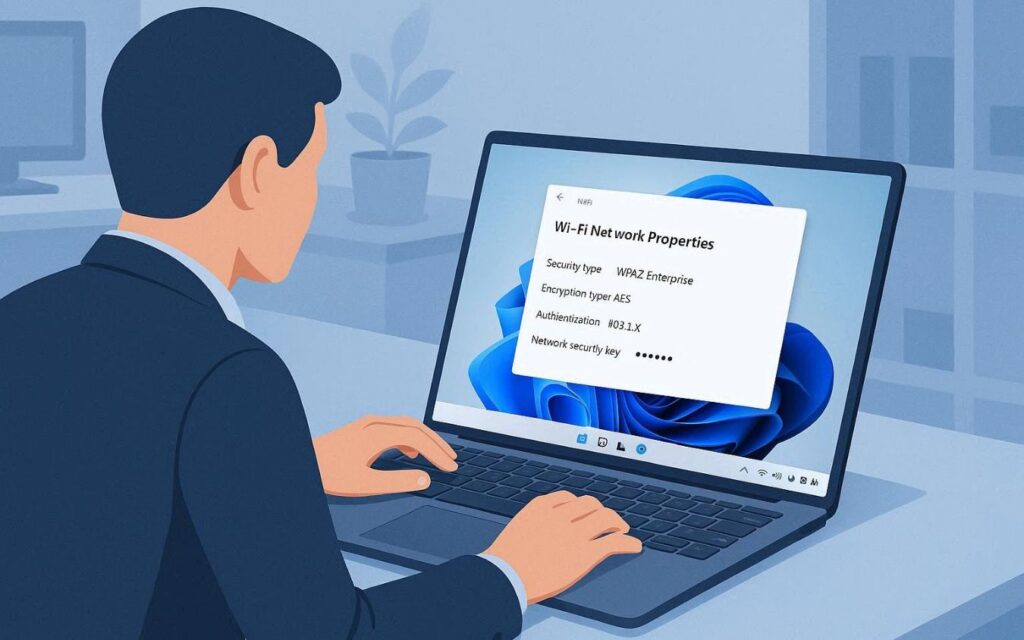
Why You May Need to Find Your Wi-Fi Password (Detailed Table)
| Situation | Why Finding the Password Helps |
|---|---|
| Connecting a new device | Allows quick connection without changing Wi-Fi settings |
| Sharing Wi-Fi with others | Easily provide access to family or guests |
| Switching to a new laptop or phone | Old device may still have the saved password |
| Router label not readable | No need to physically check or reset the router |
| Avoiding router reset | Saves time and prevents reconnecting all devices |
| Managing home or office Wi-Fi | Helps keep track of existing network credentials |
Things to Know Before You Start
Before you learn how to get Wi-Fi password from PC, it’s important to understand a few basic things. You can only view the password of a Wi-Fi network that is already connected or saved on your Windows 11 system. Administrator access is required, and these steps should be used only for networks you own or have permission to access. Keeping these points in mind will help the process go smoothly without any confusion.
Before moving ahead, keep these points in mind:
- You can only view passwords of already connected or saved Wi-Fi networks
- Administrator access is required
- These methods work only on your own PC or laptop
This guide explains how to get Wi-Fi password legally, not how to access someone else’s network.
Quick Comparison: Ways to Find Wi-Fi Password in Windows 11
| Method | Difficulty | Best For |
|---|---|---|
| Control Panel | Easy | Beginners |
| Command Prompt (CMD) | Medium | Advanced users |
| Network Settings | Easy | Laptop users |
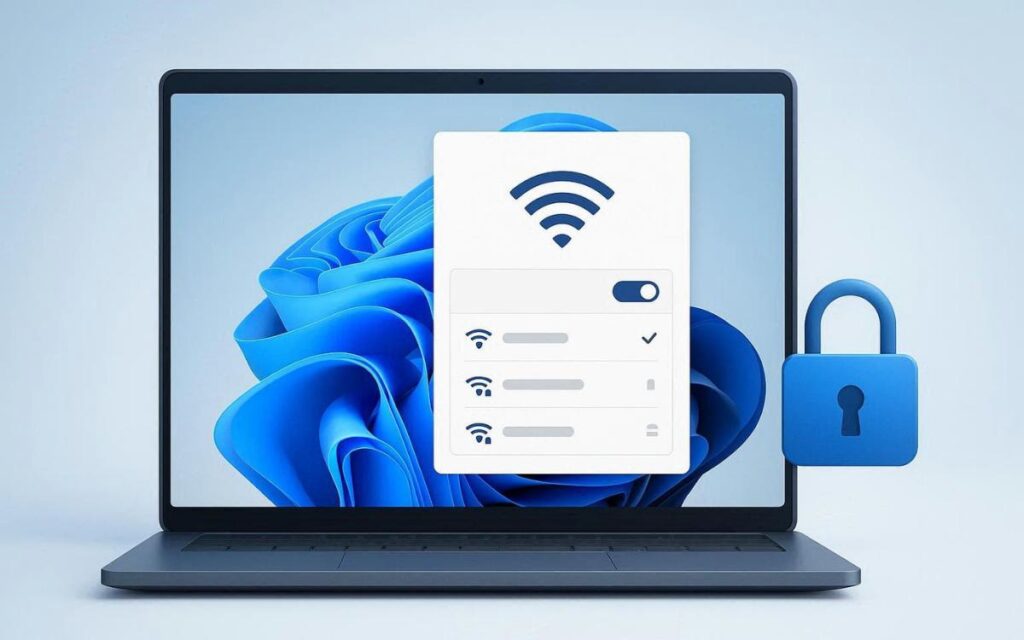
Method 1: How to Find Wi-Fi Password in Windows 11 Using Control Panel
This is the simplest and most user-friendly method.
Steps:
- First, open the Run dialog box using the Windows + R shortcut. In the box that appears, type “Control Panel” and press Enter to proceed.
- Go to Network and Internet
- Click Network and Sharing Center
- Select your connected Wi-Fi network
- Click Wireless Properties
- Open the Security tab
- Tick Show characters
Now you can clearly view Wi-Fi password in Windows 11.
This method is ideal if you want to find Wi-Fi password in laptop without technical commands.
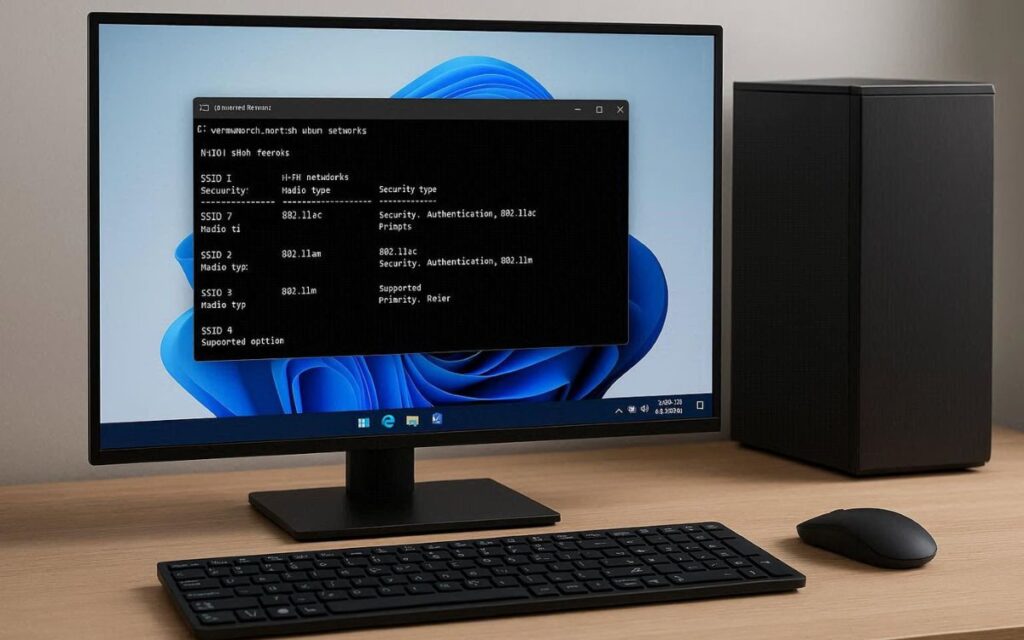
Method 2: How to Get Wi-Fi Password from PC Using Command Prompt
This method is useful if you want to see passwords of previously connected networks.
Steps:
- Click Start and search for Command Prompt
- Right-click and select Run as administrator
- Type the command below and press Enter:
netsh wlan show profiles
- Note the Wi-Fi name
- Then run:
netsh wlan show profile name="WiFiName" key=clear
- I’ll check the content – you’ll find your Wi-Fi password here.
This is one of the most reliable ways to get Wi-Fi password from PC in Windows 11.
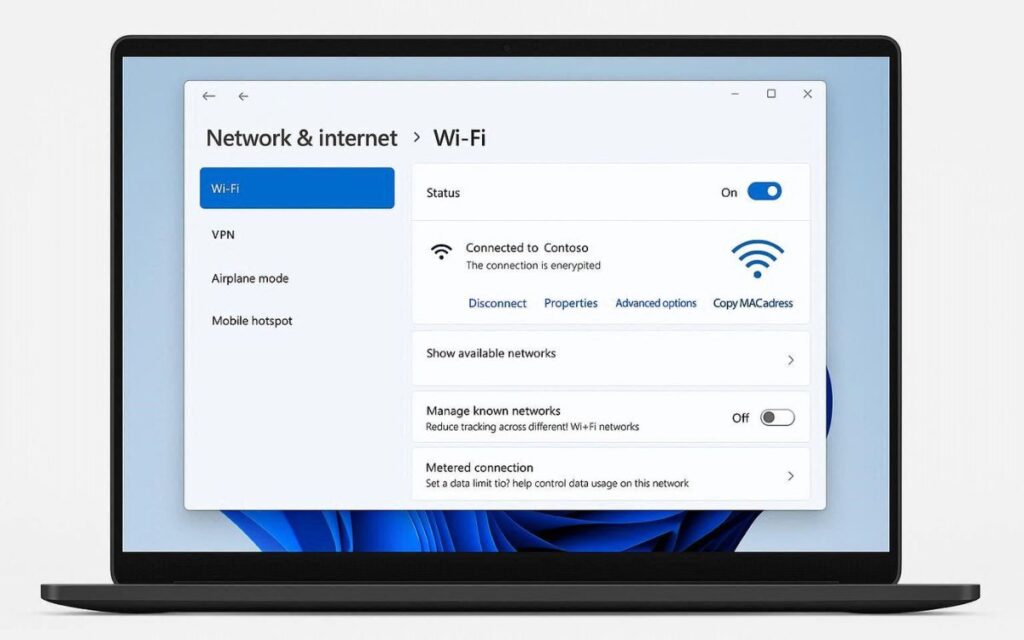
Method 3: How to Find Out Wi-Fi Password in Laptop Using Settings
If you prefer system settings, this method works well.
Steps:
- Open Settings
- Go to Network & Internet
- Click Advanced network settings
- Select More network adapter options
- Right-click on Wi-Fi → Status
- Click Wireless Properties
- Open Security tab and enable Show characters
Read More: OPPO Watch S Features and Battery Life: Full Review & Specifications
Your Wi-Fi password will now be visible.
Common Problems and Solutions
| Issue | Solution |
|---|---|
| Password not visible | Check admin access |
| Wi-Fi not connected | Connect first |
| Network not listed | Network not saved |
| CMD error | Run as administrator |
Is It Safe to View Wi-Fi Password in Windows 11?
Yes, it is completely safe if you are checking your own network.
Windows 11 only shows passwords that are already saved on your device.
Do not try to access networks you do not own
Always use official system tools
Frequently Asked Questions (FAQs)
How do I find my Wi-Fi password on Windows 11?
You can find it using Control Panel, Command Prompt, or Network Settings if the Wi-Fi is already saved.
Can I view Wi-Fi password without admin rights?
No, administrator access is required.
Does this work on all laptops?
Yes, it works on all Windows 11 laptops and PCs.
Can I check Wi-Fi password of an old network?
Yes, by using Command Prompt if the profile is still saved.
Final Thoughts
Now you know how to find Wi-Fi password in Windows 11 using safe and simple methods.
If you want an easy approach, use the Control Panel method.
For advanced users, the Command Prompt method is very powerful.
I personally use the first method because it’s quick and beginner-friendly.
Disclaimer
This article is for educational purposes only. Always access networks you own or have permission to use.

- AI Blog SEO Assistant – The Ultimate Blog SEO Tool for Meta, Tags & Keywords
 When I first started blogging, I genuinely believed that writing good content was enough. I used to spend hours researching topics, crafting articles, and publishing them with full confidence… but the results were disappointing. No traffic. No ranking. No growth. That’s when I realized something important …
 - Word Counter Tool – Count Words, Characters & Reading TimeWord Counter Tool Word Counter Tool Copy Clear Words 0 Characters 0 Characters (No Spaces) 0 Sentences 0 Paragraphs 0 Reading Time 0 sec Writing content without knowing the exact number of words or characters can be difficult. Whether you are a blogger, student, content writer, …
- What is Project Management? 5 Best Project Management Tools You Can TryAre you looking for a simple way to manage your projects, assign tasks, and save time? You’re not alone. Whether you are running a business, working in a company, or managing a small team, handling multiple tasks at once can feel overwhelming. In this easy-to-understand guide, …
- 10 Must-Have Google Chrome Extensions for Maximum ProductivityConstantly switching between tabs, missing important emails, or struggling to stay focused while working or studying? You’re not alone. After spending years working with digital tools and productivity systems, I’ve tested dozens of browser extensions that genuinely save time, reduce distractions, and simplify daily workflows. In …
- PS5 Digital Edition Price in India (2026) – Storage, Games Capacity & PS5 Pro PriceAgar aap India me PS5 Digital Edition lene ka plan bana rahe ho, to sabse pehla question yehi aata hai – PS5 Digital Edition price in India actually kitna hai? Online platforms par alag-alag prices, kabhi out of stock, kabhi discount offers dekh kar kaafi log …