Many users complain that their PC feels slower after upgrading to Windows 11. If you are searching for:
- Why is my computer so slow on Windows 11?
- How do I fix Windows 11 slowness?
- Is Windows 11 slower than Windows 10?
You are not alone. In this guide, we’ll explain the real reasons behind Windows 11 slowness and provide practical solutions that actually work.
Read More: What Is CNAP in Telecom?
Why Is My Computer So Slow on Windows 11?
Windows 11 is more visually advanced and security-focused than Windows 10. Because of this, it requires more system resources.
If your computer was already running near its limits on Windows 10, Windows 11 may feel slower due to:
- Higher background processes
- New animations and UI effects
- Stricter security features
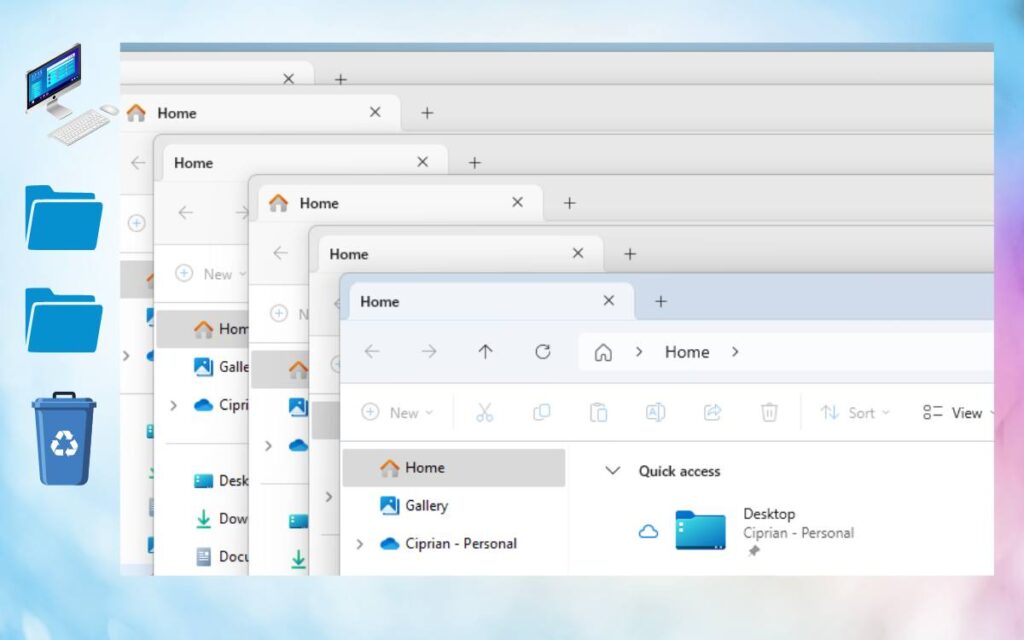
Common Reasons for Windows 11 Slowness
1. Older or Low-End Hardware
Windows 11 works best on newer systems. Older CPUs, HDDs, or low RAM can cause lag.
2. Too Many Startup Apps
Many apps automatically start with Windows 11, slowing boot time and performance.
3. Heavy Visual Effects
Animations, transparency, and rounded UI elements consume GPU and RAM.
4. Background Updates and Indexing
Windows Update, Defender scans, and search indexing often run in the background.
5. Outdated Drivers
Old graphics or chipset drivers can seriously impact Windows 11 performance.
Windows 11 Slower Than Windows 10? (Comparison)
| Feature | Windows 10 | Windows 11 |
|---|---|---|
| System requirements | Lower | Higher |
| UI effects | Basic | Advanced |
| Background services | Fewer | More |
| Performance on old PCs | Better | Slower |
| Security features | Standard | Advanced |
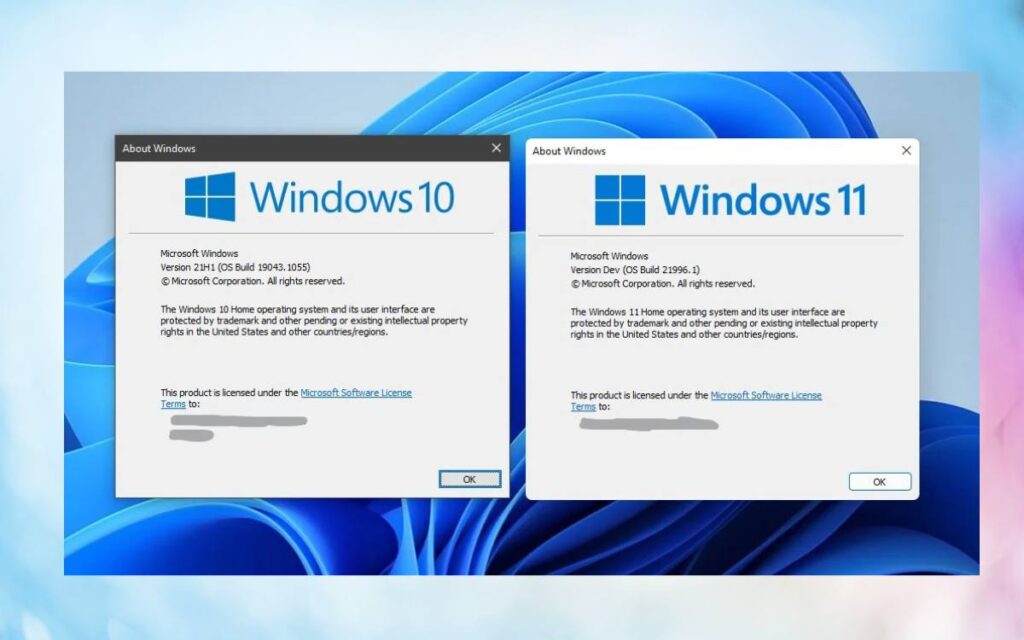
📌 Conclusion:
On older or low-end PCs, Windows 11 can feel slower than Windows 10.
How Do I Fix Windows 11 Slowness? (Proven Fixes)
1. Disable Startup Programs
Steps:
- Press
Ctrl + Shift + Esc - Open Startup tab
- Disable unnecessary apps
✅ Faster boot time
2. Reduce Visual Effects
Steps:
- Search Performance
- Open Adjust the appearance of Windows
- Select Adjust for best performance
✅ Improves overall responsiveness
3. Update Drivers
- Update graphics drivers
- Update chipset drivers
- Use manufacturer’s official website
✅ Fixes lag and freezes
4. Switch to SSD (Most Effective Fix)
If you are using an HDD:
- Upgrade to an SSD
- Windows 11 runs significantly faster on SSDs
🚀 Biggest performance boost
5. Increase RAM (If Possible)
- Minimum recommended: 8GB RAM
- Ideal for smooth use: 16GB RAM
6. Disable Background Apps
Settings → Apps → Installed apps → Background app permissions
7. Use Storage Cleanup
- Enable Storage Sense
- Remove temporary and junk files
PC Requirements for Smooth Windows 11
| Component | Recommended |
|---|---|
| CPU | 8th Gen Intel / Ryzen 3000+ |
| RAM | 8GB or more |
| Storage | SSD |
| Graphics | Updated drivers |
| TPM | TPM 2.0 |
If your PC barely meets the minimum requirements, slow performance is expected.
Should You Go Back to Windows 10?
You may consider downgrading if:
- Your PC is older
- Performance is critical
- You don’t need Windows 11 features
Windows 10 is still stable and supported, especially for older hardware.
Final Verdict
If you are asking:
- Why is my computer so slow on Windows 11?
- Why is Windows 11 slower than Windows 10?
Read More: New Instagram Hashtag Limit
The answer is clear:
👉 Windows 11 needs better hardware and optimization.
👉 On older systems, performance drops are common.
👉 With the right tweaks (SSD, RAM, settings), Windows 11 can run smoothly.
Frequently Asked Questions (FAQs)
Q. Is Windows 11 slower than Windows 10?
On older PCs, yes. On newer hardware, Windows 11 performs equally or better.
Q. Why is Windows 11 slow after update?
Updates may run background tasks like indexing and security scans, causing temporary slowness.
Q. Will Windows 11 get faster over time?
Yes. Microsoft regularly releases performance improvements and bug fixes.
Q. Does Windows 11 require SSD?
It is not mandatory, but SSD is highly recommended for smooth performance.